Add a digital signature to a PDF with your certificate
Updated 19 November 2026 · Leaf 0.2.2
A digital signature is not a picture of your handwriting. It is cryptographic proof of which certificate signed the document, and it shows whether the file changed afterwards. Leaf adds PAdES signatures with your own certificate file, on your computer.
Steps
-
Open the PDF and save your changes
Signing works on the saved file. If you have unsaved changes, Leaf asks you to save them first.
-
Start signing
Choose Document › Sign digitally….
-
Choose your certificate
Pick your
.p12or.pfxfile with Browse… and enter its password. No certificate? Create a self-signed certificate… makes one from your name, email and organization, protected by a password you choose. -
Decide how it looks
Under Place, choose an empty signature field in the form, New box to draw one on the page next, or Invisible (no mark on the page). For a visible signature, the appearance can be text only or your handwritten signature, with Show name, date and reason if you like. Reason, Location and Contact are optional.
-
Set the options
Certify is meant for the first signature, usually the author's: it states which later changes are allowed (none; form filling and signing; or form filling, signing and comments). Leave it at No — approval signature otherwise. A Timestamp server is optional: enter one and the server receives a hash of the signature, never the document.
-
Sign
Save the signed document as a new file (Leaf suggests
name-signed.pdf) or sign this file in place. The signature is added to the end of the file, so earlier signatures stay valid.
Check signatures
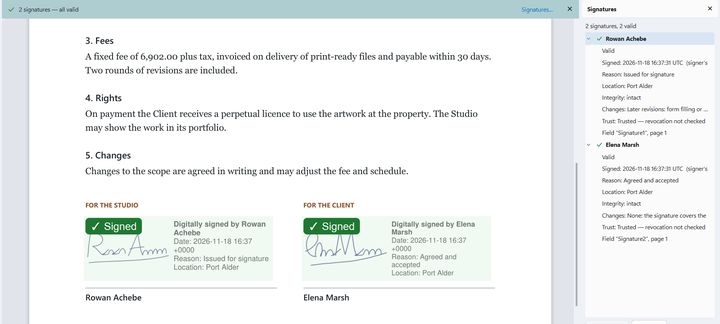
Open a signed PDF and a banner shows whether its signatures are valid. The Signatures panel (F12, or View › Signatures panel) shows, for each one, its integrity, changes made after signing, whether the signer is trusted, and the timestamp. The check runs offline.
A signer is trusted when their certificate is one of your trusted certificates or was issued by one of them. By default Leaf also trusts the certificates your system trusts (Settings › Signing). Select a signature and choose Trust signer, or manage the list in Document › Trusted certificates….
Limits
- Self-signed certificates show as “Signer not trusted” for other people until they trust your certificate. You can send them its
.pemfile from the Signatures panel's Details. - Certificate files only: Leaf signs with
.p12or.pfxfiles. It doesn't use the Windows certificate store or smart cards yet, and doesn't add long-term validation (LTV) data. - Changes after signing: Leaf saves later edits as additions to the file so signatures stay valid. Redaction and Sanitize rewrite the whole file and break them; Leaf warns you before that happens.
- Whether a signature meets a legal requirement depends on what you sign, where, and with which certificate.