Redact a PDF permanently, so the text is really gone
Updated 19 November 2026 · Leaf 0.2.2
A black rectangle drawn over text is not a redaction: the words are still in the file, and anyone can copy them out. When you save, Leaf removes what is under each redaction mark: the text, image pixels, drawings, annotations, form fields and links. It runs on your computer, so the unredacted file never goes anywhere.
Steps
-
Open the PDF and pick Redact
Open the document, then press X or choose Insert › Redact.
-
Mark what should go
Drag across text to mark it; the mark snaps to whole words. Drag a box to mark anything else, such as a photo, a signature or part of a drawing. Hold Shift to always draw a box. You can also select text with the Select tool (V) and choose Edit › Redact selected text, which is on the right-click menu too.
-
Find every occurrence with Search & redact
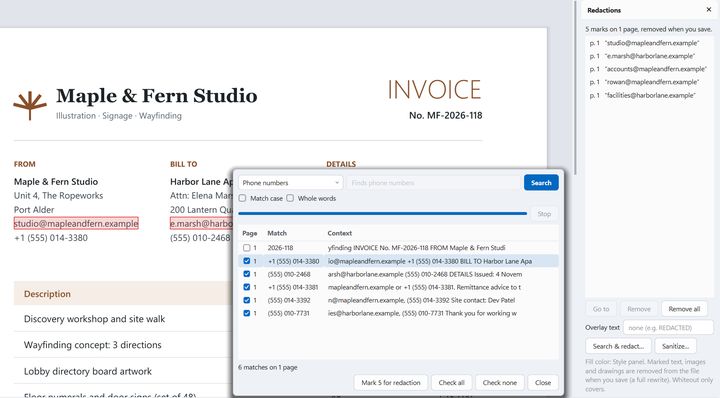
Choose Document › Search & redact…. Pick what to look for: Text, Email addresses, Phone numbers, Credit card numbers, IBANs, Dates or a Custom regular expression, then Search. Every hit is listed, ticked, with its page and the text around it. Untick anything that should stay, then choose Mark for redaction.
-
Review the marks
View › Redactions panel lists every mark. Select one to go to it or remove it, or add overlay text to show on the marks. The fill color is in the Style panel (F6).
-
Remove hidden information (optional)
Document › Sanitize document… removes, when you save: metadata, JavaScript and actions, attachments, comments and annotations, hidden text, hidden layers, links, page thumbnails and page labels. It can also flatten form fields into the page.
-
Save
Leaf says how many marks are on how many pages, and names any digital signatures that will stop being valid. Choose Save and remove. To keep the unredacted original, use File › Save As… and pick a new name.
Limits
- Saving makes it final. Until you save, marks are only marks and you can undo them. After you save, what was under them is gone from that file.
- Signatures break. Redacting always rewrites the whole file, so existing digital signatures stop being valid. Leaf warns you first.
- Patterns help, but check the document yourself. The built-in searches find emails, phone numbers, card numbers, IBANs and dates. Names, addresses and other details need a text search or a mark of your own.
- Scans: on a scanned page the words are part of the image. Draw a box over them; the image pixels under it are removed.
- Whiteout is not redaction. The Whiteout tool (W) only covers content; the text stays in the file.
Check the result
Open the saved file and use Find (Ctrl F) for a word you redacted. It shouldn't be found, and you shouldn't be able to select or copy anything under the marks.