Fill in and sign a PDF form without uploading it
Updated 19 November 2026 · Leaf 0.2.2
Rental applications, tax forms and contracts often hold the most personal details you have. Leaf fills them in and signs them on your computer, so they don't pass through anyone's server on the way.
Steps
-
Open the form
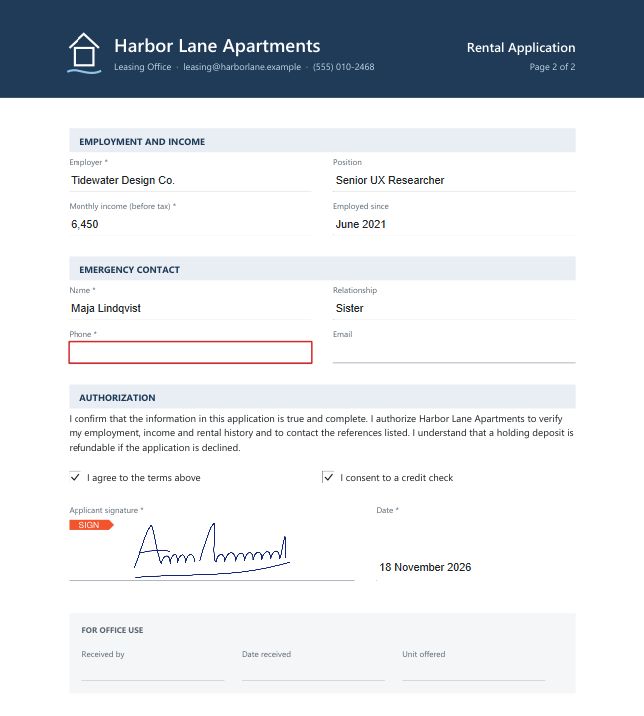
Open the PDF in Leaf. Form fields get a tinted background so they're easy to spot; Forms › Highlight fields turns that on and off.
-
Fill in the fields
Click a field and type. Tick checkboxes and radio buttons, and pick from dropdowns and lists. Tab moves to the next field in the order the form's author set. Required fields are marked.
-
Find what you missed
Forms › Next required empty field (Ctrl Shift J) jumps to the next required field that is still empty.
-
Add your signature
Click an empty signature field, or choose Insert › Signature… (Ctrl Shift G). Draw your signature, type it, or use Image to pick a photo or scan: Leaf removes the white background. Choose Save & place. The signature is kept in your library, so next time you pick it and choose Place selected. Drag it into place and resize it by its corners.
-
Save
Press Ctrl S. To send a copy whose answers can't be edited as easily, choose Forms › Save flattened copy… (also in the File menu): the fields become part of the page.
More form tools
- Reuse answers: Forms › Export form data… saves the values as JSON or XFDF, and Import form data… fills a form from such a file.
- Start over: Forms › Reset form puts every field back to the value it had when you opened the file.
- A PDF without fields: type on it with the Text box tool (T), or create real fields from Forms › Add field.
Limits
- A drawn, typed or scanned signature is an image on the page. When you save, it becomes part of the page. It doesn't prove who signed or show whether the document changed later. If you need that, add a digital signature.
- A flattened copy can't replace the open document; save it under a new name.