Edit the text in a PDF, offline and free
Updated 19 November 2026 · Leaf 0.2.2
Many free tools can only put a new text box on top of a PDF. Leaf changes the words that are already there, in the document's own embedded font, at the same size, color and angle. It all happens on your computer: no upload and no account.
Steps
-
Open the PDF
Choose File › Open… (Ctrl O) or drag the file onto the Leaf window. On Windows, with the installed app, you can also right-click a PDF in File Explorer and choose Edit with Leaf (on Windows 11 it is under Show more options).
-
Pick the Edit text tool
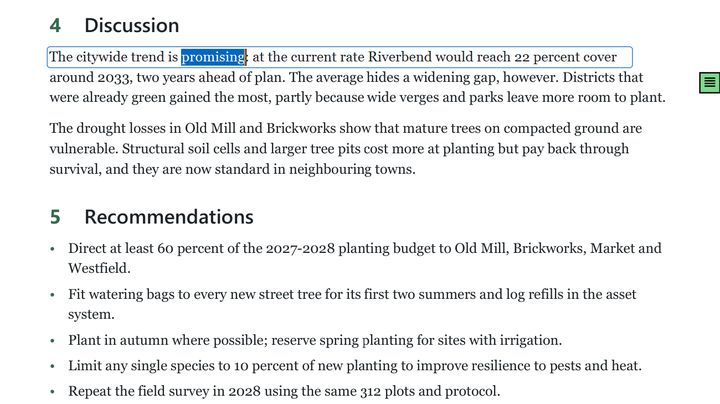
Press I, choose Edit › Edit text, or click the Edit text button in the toolbar. As you move the pointer over the page, Leaf outlines the line under it.
-
Choose a line or a whole paragraph
Press Tab while the tool is active to switch between single lines and whole paragraphs (also Edit › Edit whole paragraphs). Paragraph mode reflows the text as you type, and Shift Enter starts a new line. Leaf remembers your choice.
-
Click and type
Click the outlined text and type your change. Enter applies it, Esc cancels. Every change is one undo step, so Ctrl Z takes it back.
-
Replace a word everywhere (optional)
Edit › Replace… (Ctrl H) adds a replace row under the find bar. It can match case, whole words or a regular expression (use
\1or$1for groups). Replace all is a single undo step. Lines that can't be changed faithfully are skipped and listed with the reason. Tick Text boxes or Form fields to replace there too. -
Save
Press Ctrl S, or use File › Save As… to keep the original as it was. Leaf rewrites the file, so the old words are gone from it, not hidden under the new ones.
Limits
Leaf would rather refuse an edit than get it wrong. When it can't change text faithfully, it tells you why.
- Some text can't be edited: Arabic, Hebrew, Indic and Thai scripts (they need shaping), vertical writing, text without a reliable character mapping, outlined or clipping text, and the invisible text that OCR adds to scans.
- Missing characters: if the document's font lacks a character you type, Leaf takes it from a matching installed font and names that font in a warning.
- Reading order: edited text is drawn after the rest of the page, so copy and paste and tagged-PDF structure (used by screen readers) don't follow the edit.
- Signed files: in a digitally signed PDF, Leaf saves changes as an addition to the file so the signatures stay valid. The earlier revision, with the old text, stays inside the file.
- Scans: the words on a scanned page are part of an image. OCR makes them searchable, not editable.
Tips
- To remove words without replacing them, use Redact. Whiteout (W) only covers text; the text underneath stays in the file.
- Images on the page can be changed too: with the Select tool (V), click an image to move, resize, rotate, replace or delete it.
- To add new text rather than change existing text, use the Text box tool (T).