Make a scanned PDF searchable, with OCR that runs offline
Updated 19 November 2026 · Leaf 0.2.2
A scanned PDF is a stack of pictures: you can't search it or copy a sentence out of it. Text recognition (OCR) finds the words and adds them as an invisible layer behind each page image, so the pages look the same but become searchable. Leaf does this on your computer.
Steps
-
Open the scan
Open the PDF. When a document looks scanned, Leaf offers to recognize its text; choose Recognize text… in that message, or go on to the next step.
-
Start text recognition
Choose Document › Recognize text (OCR)….
-
Pick the language
English is built in. For another language, choose Add languages…, tick the ones you need and download them. These are Tesseract language files, 1 to 15 MB each, from the Tesseract project on GitHub; only the language files are downloaded, never your document. You can combine languages with a plus sign, such as
eng+hin. -
Choose pages and resolution
Recognize All pages, the Current page, or a range such as
1-3, 7, 10-. Skip pages that already have text is on by default. 300 dpi suits most scans; a higher resolution finds small print better but is slower. -
Recognize
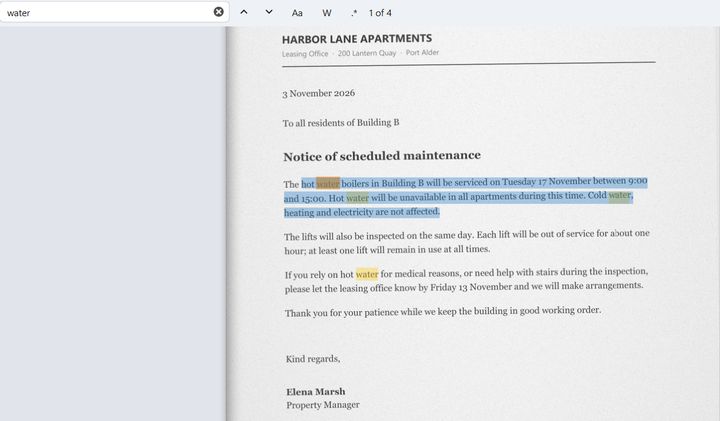
Choose Recognize. Leaf works in the background with per-page progress, and you can cancel. As soon as it's done, Find (Ctrl F), selecting and copying work on the scanned pages.
-
Check and save
View › Show recognized text tints each word by confidence: green when Leaf is sure, amber or red when it isn't. Save (Ctrl S) to write the invisible text into the file. Changed your mind before saving? Document › Remove recognized text, or undo.
Tips
- From a terminal,
leaf ocr scan.pdf -o searchable.pdfdoes the same without opening a window. On Windows, useleaf-clifrom Leaf's folder. - Once a scan is searchable, Find shows you where a name or number appears, so you can redact it with a box.
Limits
- Recognition is only as good as the scan. Blurry, skewed or very small print gives more mistakes; check the amber and red words.
- Recognized text makes a page searchable, not editable: the Edit text tool doesn't change OCR text.
- Leaf connects to the internet only when you choose Add languages…, to download the language files you picked.